Search.r0n3.com is a Mac OS X browser hijacker. Search.r0n3.com browser hijacker modifies the search engine and homepage of Safari and Google Chrome on Mac OSX.
Search.r0n3.com is regularly offered on the internet as a convenient homepage. However, in reality, this is a browser hijacker that collects all kinds of data from your browser.
The data collected by Search.r0n3.com is used for advertising purposes. The data is sold to advertising networks. Because Search.r0n3.com collects data from your browser, Search.r0n3.com is also classified as (PUP) Potentially Unwanted Program.
Hijack browser extension will install itself in the Google Chrome and Safari browser only on Mac OS X. Neither Apple of any browser developer yet notices this browser hijacker as unwanted.
If your home page has changed to Search.r0n3.com and the Search.r0n3.com browser extension has been installed, remove the Hijack extension as soon as possible using this Hijack removal instruction.
Remove Search.r0n3.com adware with Malwarebytes
Malwarebytes is a malware removal app that helps detect and remove threats from your Windows computer. The free version lets you run manual scans and quarantine detected threats. A paid subscription adds real-time protection to help prevent new infections.
Follow the installation instructions, then open Malwarebytes.

-
Click "Scan" on the main dashboard to check your computer for malware.
-
Wait for the scan to finish. Malwarebytes will display a summary of the results.
-
Review the detected items. If threats have not already been quarantined, select them and click "Quarantine."
Quarantine isolates detected items to prevent them from running and causing further harm. If Malwarebytes asks you to restart your computer, follow the prompt to complete the removal process.
-
Click "View report" or "View Scan Report" to review the scan details.
-
If no threats were detected, click "Done" to close the scan summary.
Run Malwarebytes regularly to check for threats, especially if you notice suspicious behavior on your computer. You can continue using the free version for manual scans and malware removal. Ongoing real-time protection requires a paid subscription.
When the removal process is done, continue to the next step.
Continue to the next step to remove unwanted browser settings from Safari, Chrome, or Firefox (Mac)
Uninstall Search.r0n3.com Extension from Safari for Mac
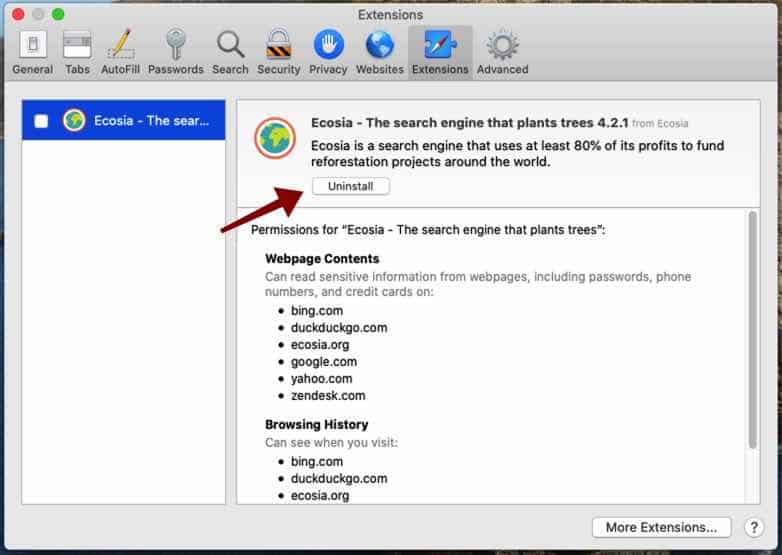
Open the Safari browser. In the left top corner click on Safari. In the Safari menu click on Preferences. Open the “Extensions” tab.
Click on the extension you would like to remove, make sure to check any installed Safari extension, and click on “Uninstall”.
Uninstall Search.r0n3.com Extension from Google Chrome for Mac
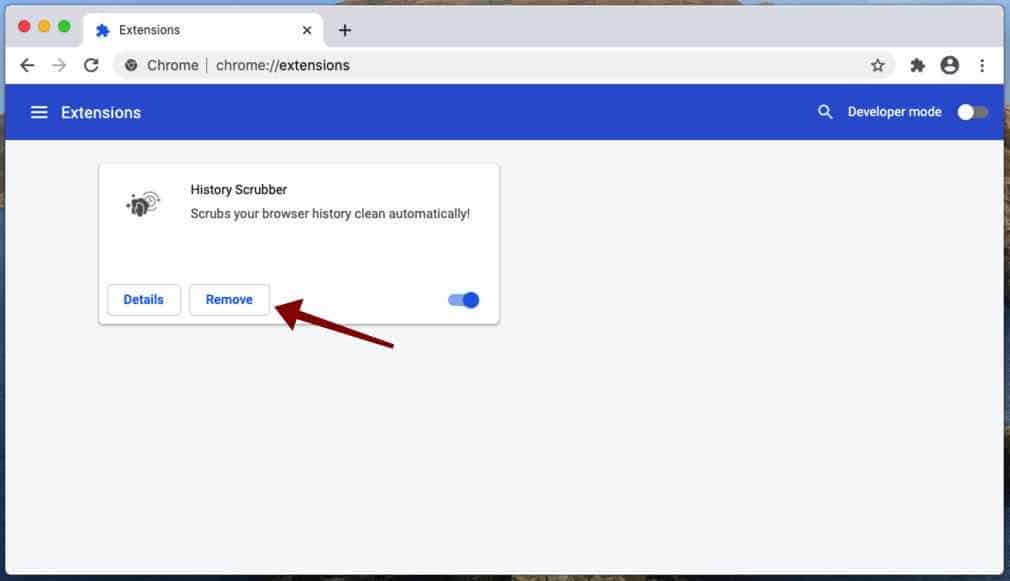
Open the Google Chrome browser on Mac. In the address bar type: chrome://extensions/. Verify all listed browser extensions.
If you notice an installed extension you do not know or do not trust, click the Remove button to uninstall the extension from Google Chrome.
Some malware programs create policy’s to prevent users from resetting browser configurations such as the web browser’s homepage and the search engine. If you cannot change your homepage or search engine in the Google Chrome browser you might want to remove the policies created by the malware to restore the browser’s configurations.
Remove unwanted profile from your Mac
First, you need to remove unwanted profiles from your Mac, follow the steps.
Click the Apple symbol () in the top left corner on Mac OS X, click on “Preferences” in the menu bar, and select “Profiles”. If profiles don’t exist you do not have any malicious profile installed on your Mac.
Select the “AdminPrefs“, “Chrome Profile“, or “Safari profile” and delete it.
Next, you need to check if there are policies created for Google Chrome. Open the Chrome browser, in the address bar type: chrome://policy.
If there are policies loaded into the Chrome browser, follow the steps below to remove the policies.
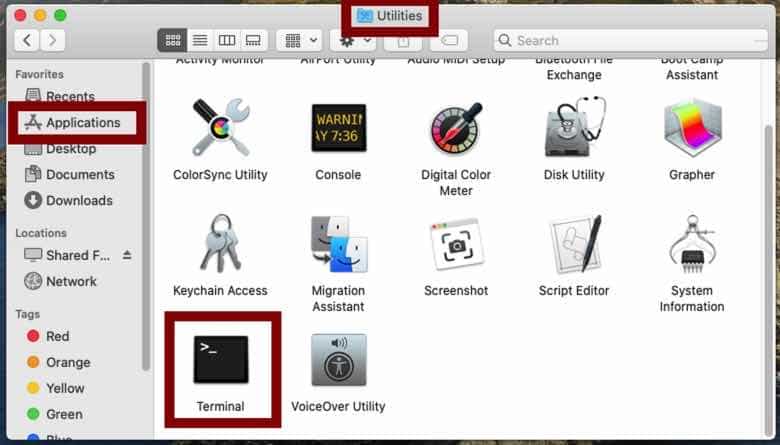
On the Applications folder on your Mac, go to Utilities and Open the Terminal application.
Enter the following commands in the Terminal application, press ENTER after each command.
- defaults write com.google.Chrome HomepageIsNewTabPage -bool false
- defaults write com.google.Chrome NewTabPageLocation -string “https://www.google.com/”
- defaults write com.google.Chrome HomepageLocation -string “https://www.google.com/”
- defaults delete com.google.Chrome DefaultSearchProviderSearchURL
- defaults delete com.google.Chrome DefaultSearchProviderNewTabURL
- defaults delete com.google.Chrome DefaultSearchProviderName
- defaults delete com.google.Chrome ExtensionInstallSources
Remove “Managed by your Organization” from Google Chrome on Mac
Some adware and malware on Mac force the browser’s homepage and search engine using a setting known as “Managed by your organization”. If you see the browser extension or settings in Google chrome is forced using the “Managed by your organization” setting, follow the steps below.
Make sure to bookmark this webpage and open it in another web browser, you need to Quit Google Chrome.
On the Applications folder on your Mac, go to Utilities and Open the Terminal application.
Enter the following commands in the Terminal application, press ENTER after each command.
- defaults write com.google.Chrome BrowserSignin
- defaults write com.google.Chrome DefaultSearchProviderEnabled
- defaults write com.google.Chrome DefaultSearchProviderKeyword
- defaults delete com.google.Chrome HomePageIsNewTabPage
- defaults delete com.google.Chrome HomePageLocation
- defaults delete com.google.Chrome ImportSearchEngine
- defaults delete com.google.Chrome NewTabPageLocation
- defaults delete com.google.Chrome ShowHomeButton
- defaults delete com.google.Chrome SyncDisabled
Restart Google Chrome when you are done.
Uninstall Search.r0n3.com Add-on from Mozilla Firefox for Mac
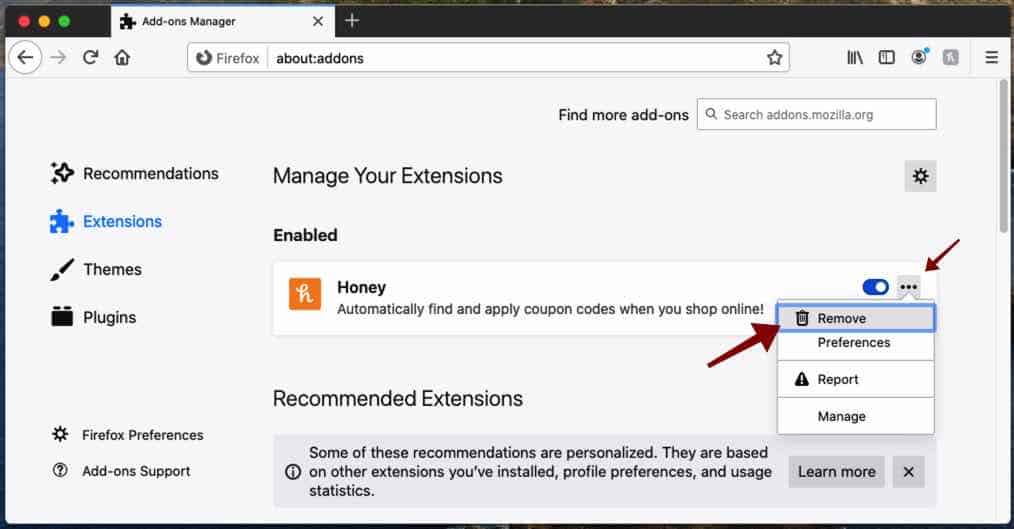
Open the Firefox browser. In the address bar type: about:addons. Verify all installed Firefox add-ons.
If you notice an installed add-on you do not know or do not trust, click the Remove button to uninstall the add-on from Firefox.
Your Mac should be free of Mac adware or Mac malware. Try this guide on how to remove Mac malware.
