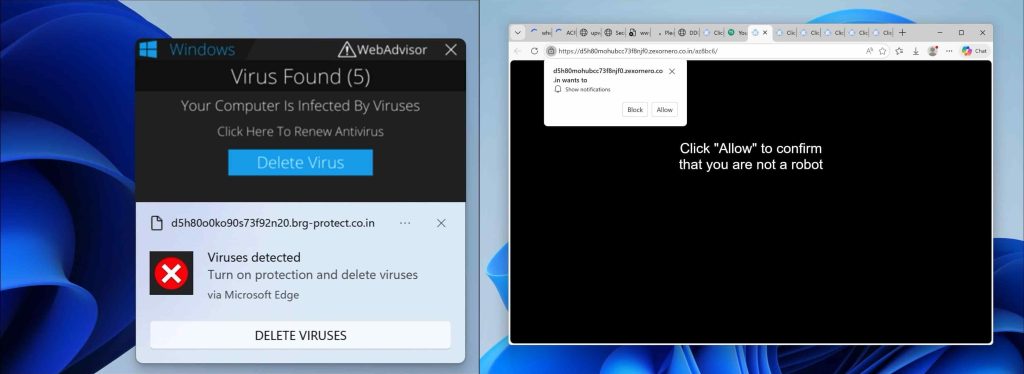
Rbtchk42.online pop-up ads will appear in your browser if you have accepted push notifications from Rbtchk42.online ads.
What is Rbtchk42.online?
Rbtchk42.online notifications will be displayed in the Google Chrome browser (including Android or iOS), Firefox browser, Edge browser, or Safari browser. The notifications appear as pop-ups in the lower right corner of Windows or on your mobile device, for example, an Android tablet or phone or iPad or iPhone.
Rbtchk42.online advertisements are the result of rogue websites that redirect users to Rbtchk42.online after a visit, and there they try to convince the user to press the “allow” button on the web browser.
Rbtchk42.online is a social engineering trick to mislead users and is only intended to trick you into clicking on the ads that Rbtchk42.online displays. Clicking on the Rbtchk42.online ads will redirect you to multiple dangerous websites and make revenue for cybercriminals.
Why am I seeing Rbtchk42.online pop-up ads?
In most cases, this is not caused by malware, but checking your system is recommended. I do recommend checking your computer for malware with Malwarebytes.
In this article, I will explain per web browser how to remove the notifications and advertisements from the Rbtchk42.online domain from the web browser settings.
Please follow the steps below to remove Rbtchk42.online.
Remove Rbtchk42.online pop-up ads and push notifications (Virus Removal Guide)

Remove Rbtchk42.online notifications from Google Chrome (Windows, Mac, Android, iOS)
- Open Google Chrome.
- Click on the Chrome menu button in the top-right corner.
- Click on Settings.
- Click on Privacy and Security.
- Click Site settings.
- Click on Notifications.
- Click on the Remove button next to Rbtchk42.online.
Disable push notifications in Google Chrome
- Open the Chrome browser.
- Click on the Chrome menu button in the top-right corner.
- Click on Settings.
- Click on Privacy and security.
- Click on Site settings.
- Click on Notifications.
- Click on “Don’t allow sites to send notifications” to disable notifications.

Remove Rbtchk42.online pop-up ads on Android (Chrome browser)
- Open Google Chrome
- Tap on the Chrome menu button.
- Tap on Settings and scroll down to Advanced settings.
- Tap on the Site Settings section, tap the Notifications settings, find the Rbtchk42.online domain, and tap on it.
- Tap the Clean & Reset button.
Problem solved? Please share this page, Thank you SO much.

Remove Rbtchk42.online notifications from Mozilla Firefox
- Open Firefox
- Click on the Firefox menu button.
- Click on Options.
- Click on Privacy & Security.
- Click on Permissions and then to Settings next to Notifications.
- Click on the Rbtchk42.online URL and change the status to Block.

Remove Rbtchk42.online pop-ups from Internet Explorer
- Open Internet Explorer.
- In the top right corner, click on the gear icon (menu button).
- Go to Internet Options in the menu.
- Click on the Privacy tab and select Settings in the pop-up blockers section.
- Find the Rbtchk42.online URL and click the Remove button to remove the domain.

Remove Rbtchk42.online notifications from Microsoft Edge
- Open Microsoft Edge.
- Click on the Edge menu button.
- Click on settings.
- Click on Cookies and site permissions.
- Click on Notifications.
- Click on the “more” button right next to the Rbtchk42.online URL.
- Click on Remove.
Disable push notifications in Microsoft Edge
- Open Microsoft Edge.
- Click on the Edge menu button.
- Click on settings.
- Click on Cookies and site permissions.
- Click on Notifications.
- Turn the switch “Ask before sending (recommended)” off.

Remove Rbtchk42.online pop-up ads from Safari (Mac)
- Open Safari.
- Click in the menu on Preferences.
- Click on the website tab.
- In the left menu click on Notifications
- Find the Rbtchk42.online domain and select it, click the Deny button.
Malwarebytes is a malware removal app that helps detect and remove threats from your Windows computer. The free version lets you run manual scans and quarantine detected threats. A paid subscription adds real-time protection to help prevent new infections.
Follow the installation instructions, then open Malwarebytes.

-
Click "Scan" on the main dashboard to check your computer for malware.
-
Wait for the scan to finish. Malwarebytes will display a summary of the results.
-
Review the detected items. If threats have not already been quarantined, select them and click "Quarantine."
Quarantine isolates detected items to prevent them from running and causing further harm. If Malwarebytes asks you to restart your computer, follow the prompt to complete the removal process.
-
Click "View report" or "View Scan Report" to review the scan details.
-
If no threats were detected, click "Done" to close the scan summary.
Run Malwarebytes regularly to check for threats, especially if you notice suspicious behavior on your computer. You can continue using the free version for manual scans and malware removal. Ongoing real-time protection requires a paid subscription.
Frequently Asked Questions
Is Rbtchk42.online a virus?
Rbtchk42.online is not a virus but a push notification scam that displays unwanted ads.
How did Rbtchk42.online get on my computer?
You allowed notifications after visiting a malicious website.
How do I stop Rbtchk42.online pop-ups?
Remove the notification permission in your browser settings.
