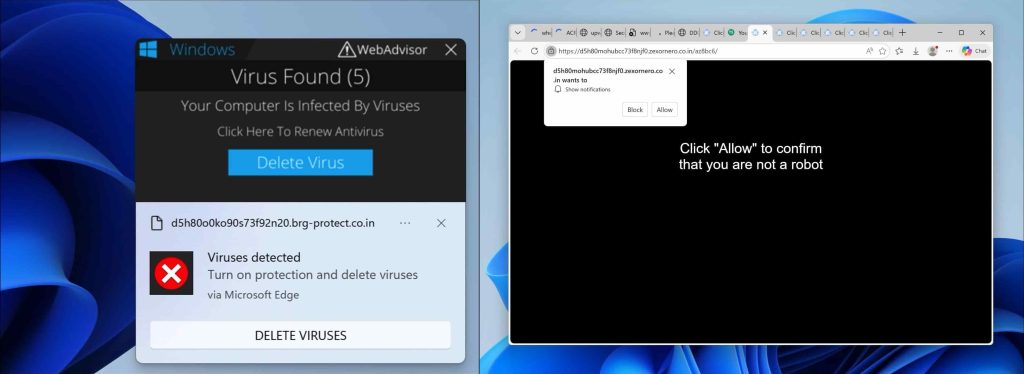
Valnero.co.in pop-up ads will appear in your browser if you have accepted push notifications from Valnero.co.in ads.
Valnero.co.in notifications will be displayed in the Google Chrome browser (including Android or iOS), Firefox browser, Edge browser, or Safari browser. The notifications appear as pop-ups in the lower right corner of Windows or on your mobile device, for example, an Android tablet or phone or iPad or iPhone.
Valnero.co.in advertisements are the result of rogue websites that redirect users to Valnero.co.in after a visit, and there try to convince the user to press the “allow” button on the web browser.
I found the following Valnero.co.in domain information:
We were unable to provide WHOIS data on this domain.
Valnero.co.in is a social engineering trick to mislead users and is only intended to trick you into clicking on the ads that Valnero.co.in displays. Clicking on the Valnero.co.in ads will redirect you to multiple dangerous websites and make revenue for cybercriminals.
In most cases, your computer is most likely not infected with adware or malware, but there is only a web browser setting that needs to be removed to remove the Valnero.co.in advertisements from your device. I do recommend to check your computer for malware with Malwarebytes.
In this article, I will explain per web browser how to remove the notifications and advertisements from the Valnero.co.in domain from the web browser settings.
Please follow the steps below to remove Valnero.co.in.
How to remove Valnero.co.in?

Google Chrome
- Open Google Chrome.
- Click on the Chrome menu button in the top-right corner.
- Click on Settings.
- Click on Privacy and Security.
- Click Site settings.
- Click on Notifications.
- Click on the Remove button next to Valnero.co.in.
Disable notifications in Google Chrome
- Open the Chrome browser.
- Click on the Chrome menu button in the top-right corner.
- Click on Settings.
- Click on Privacy and security.
- Click on Site settings.
- Click on Notifications.
- Click on “Don’t allow sites to send notifications” to disable notifications.

Android
- Open Google Chrome
- Tap on the Chrome menu button.
- Tap on Settings and scroll down to Advanced settings.
- Tap on the Site Settings section, tap the Notifications settings, find the Valnero.co.in domain, and tap on it.
- Tap the Clean & Reset button.
Problem solved? Please share this page, Thank you SO much.

Firefox
- Open Firefox
- Click on the Firefox menu button.
- Click on Options.
- Click on Privacy & Security.
- Click on Permissions and then to Settings next to Notifications.
- Click on the Valnero.co.in URL and change the status to Block.

Internet Explorer
- Open Internet Explorer.
- In the top right corner, click on the gear icon (menu button).
- Go to Internet Options in the menu.
- Click on the Privacy tab and select Settings in the pop-up blockers section.
- Find the Valnero.co.in URL and click the Remove button to remove the domain.

Microsoft Edge
- Open Microsoft Edge.
- Click on the Edge menu button.
- Click on settings.
- Click on Cookies and site permissions.
- Click on Notifications.
- Click on the “more” button right next to the Valnero.co.in URL.
- Click on Remove.
Disable notifications in Microsoft Edge
- Open Microsoft Edge.
- Click on the Edge menu button.
- Click on settings.
- Click on Cookies and site permissions.
- Click on Notifications.
- Turn the switch “Ask before sending (recommended)” off.

Safari
- Open Safari.
- Click in the menu on Preferences.
- Click on the website tab.
- In the left menu click on Notifications
- Find the Valnero.co.in domain and select it, click the Deny button.
Combo Cleaner is a cleaning and antivirus program for Mac, PC, and Android devices. It is equipped with features to protect devices from various types of malware, including spyware, trojans, ransomware, and adware. The software includes tools for on-demand scans to remove and prevent malware, adware, and ransomware infections. It also offers features like a disk cleaner, big files finder (free), duplicate files finder (free), privacy scanner, and application uninstaller.
Follow the installation instructions to install the application on your device. Open Combo Cleaner after installation.
- Click the "Start scan" button to initiate a malware removal scan.
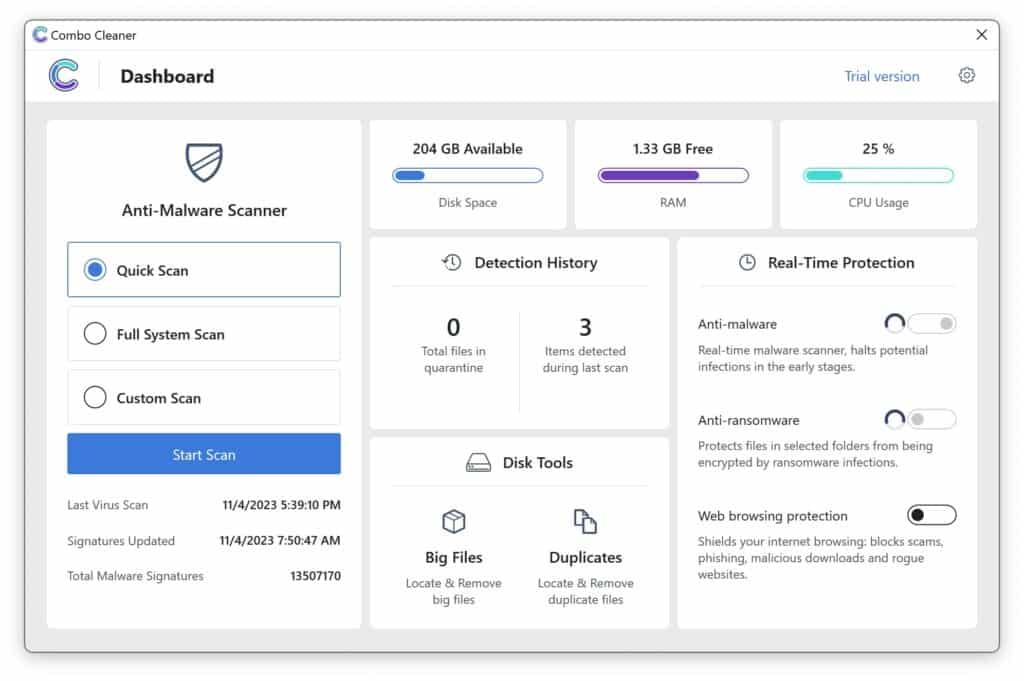
- Wait for Combo Cleaner to detect malware threats on your computer.
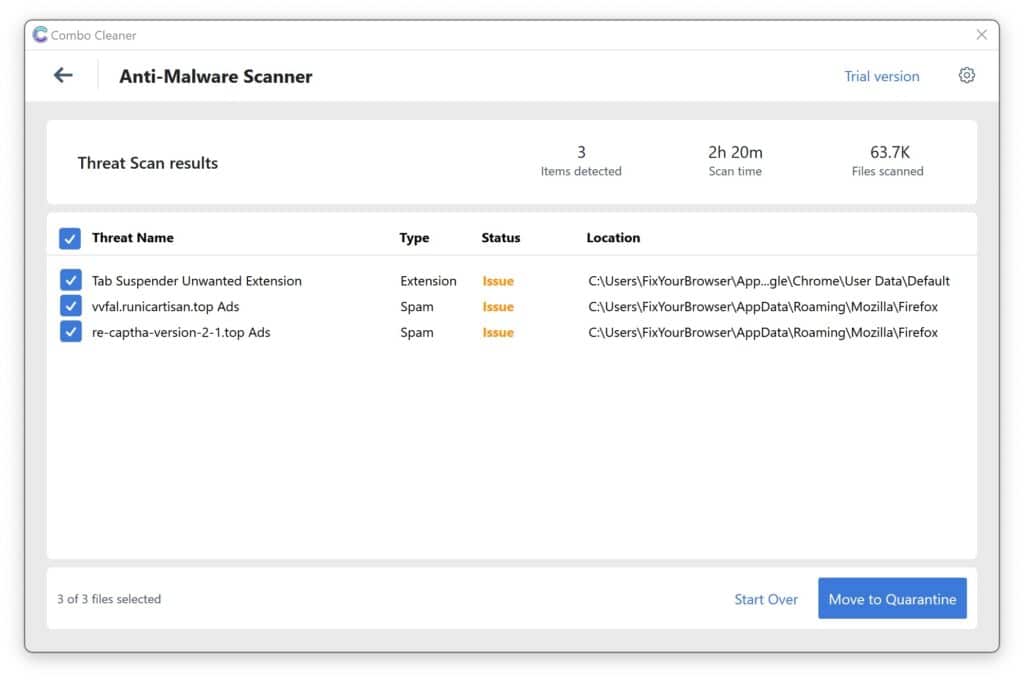
- When the Scan is finished, Combo Cleaner will show the found malware.
- Click "Move to Quarantine" to move the found malware to quarantine, where it can't harm your computer anymore.
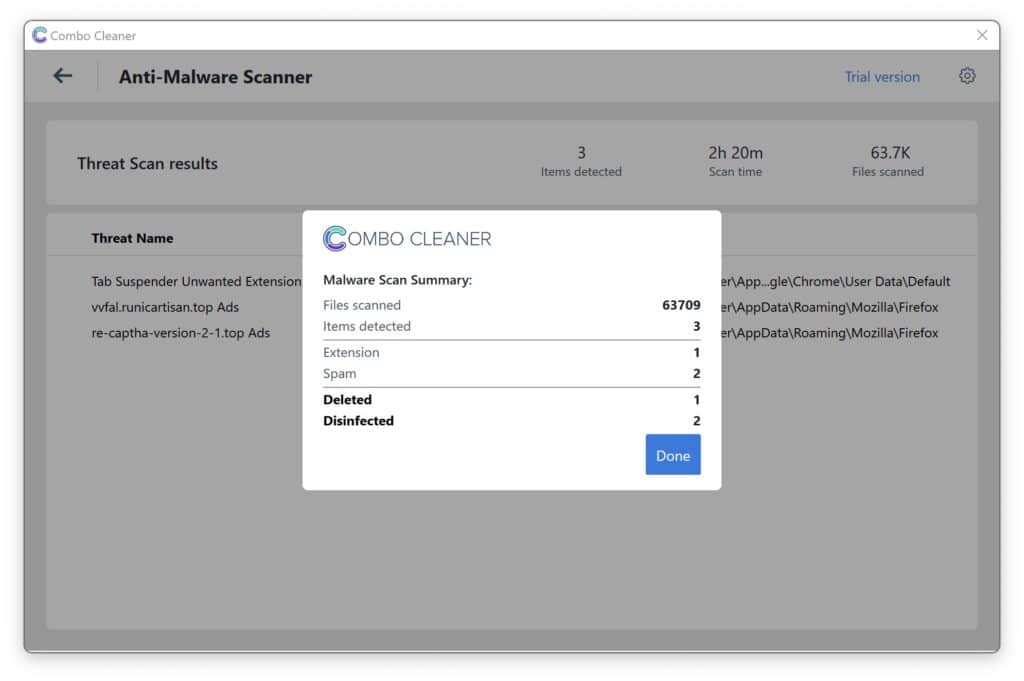
- A malware scan summary is shown to inform you about all threats found.
- Click "Done" to close the scan.
Use Combo Cleaner regularly to keep your device clean and protected. Combo Cleaner will remain active on your computer to protect your computer from future threats that try to attack your computer. If you have any questions or issues, Combo Cleaner offers a dedicated support team available 24/7.