Adwcleaner is a free scanner for adware, malware, and other unwanted software. In 2011 AdwCleaner was designed by a French student named Xplode, and in 2016 AdwCleaner was taken over by Malwarebytes.
Adwcleaner is compact and does not need to be installed. No installation makes Adwcleaner very suitable to use from a USB stick. Adwcleaner is now available in more than 21 languages.
Adwcleaner supports Google Chrome, Firefox, Internet Explorer, Edge, Opera, and Vivaldi. If adware is installed in one of these web browsers, Adwcleaner will detect and remove it.
If you notice any of the following:
- Computer is slow.
- The homepage of the web browser has changed without your permission.
- Search engine of the web browser has changed without your permission.
- Advertisements show up on your computer or web browser.
- Unknown redirects within the web browser
- Unknown toolbar in your web browser.
This might be the work of adware on your computer. AdwCleaner will detect and remove unwanted software from your computer.
How to use Malwarebytes AdwCleaner
Click here to download Malwarebytes AdwCleaner.
Using Adwcleaner is very simple; to get started, click the Scan Now button.
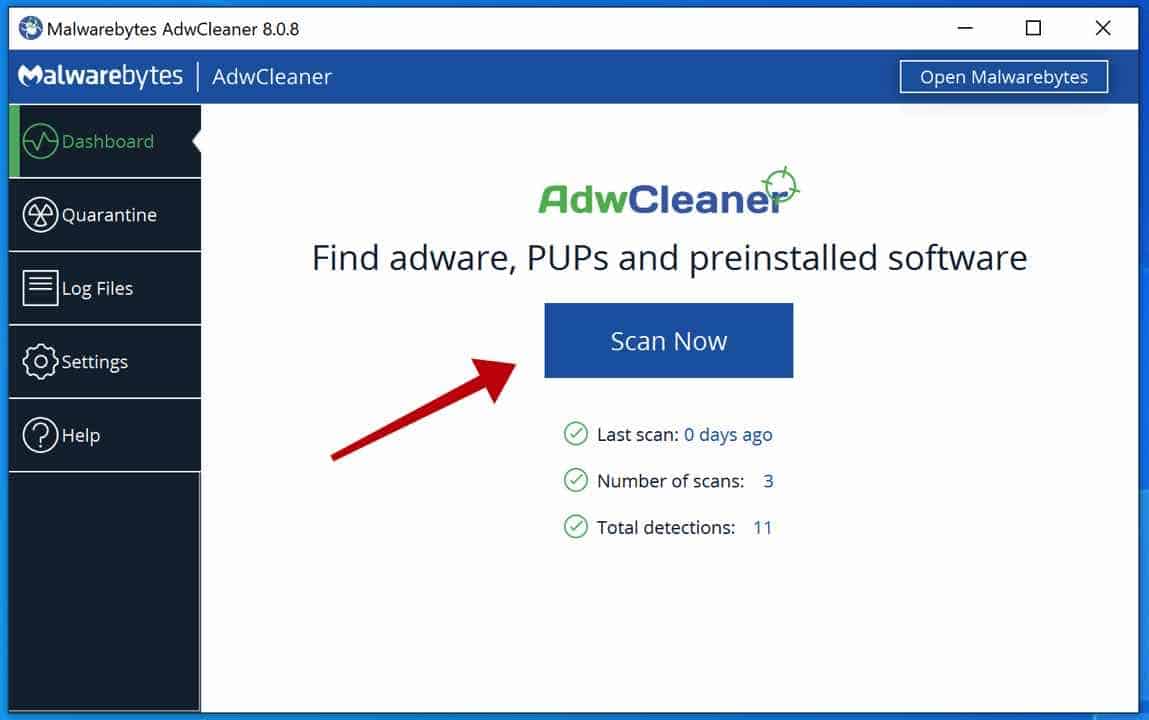
After starting the scan, the Adwcleaner detection database updates are downloaded and applied. If malware is found already, Adwcleaner displays these detection results.
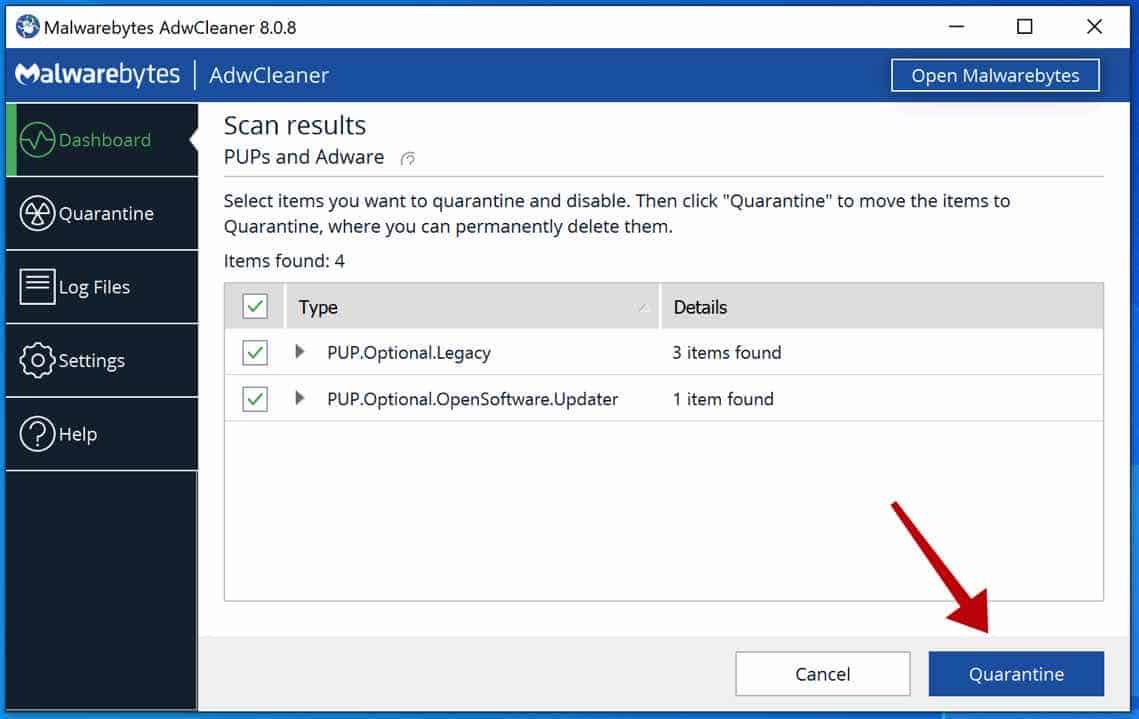
Then click the Quarantine button to remove the found malware from your computer.
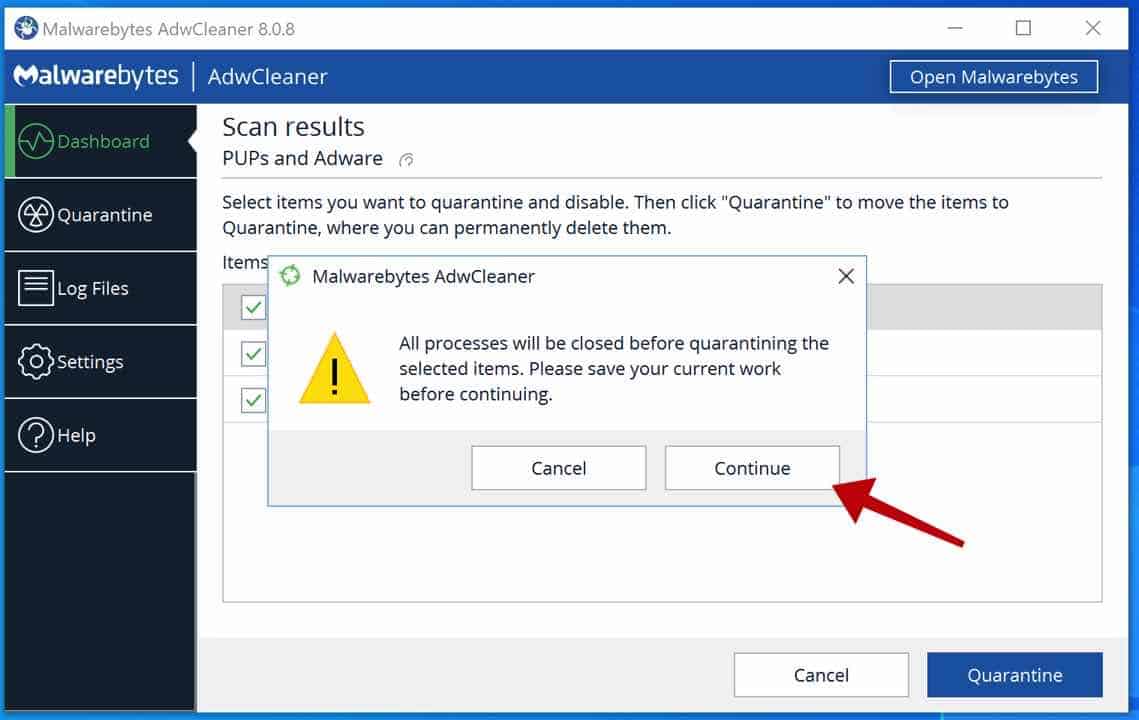
You need to save your work before you can remove the found malware. Any processes in your web browser or computer are automatically closed during malware removal.
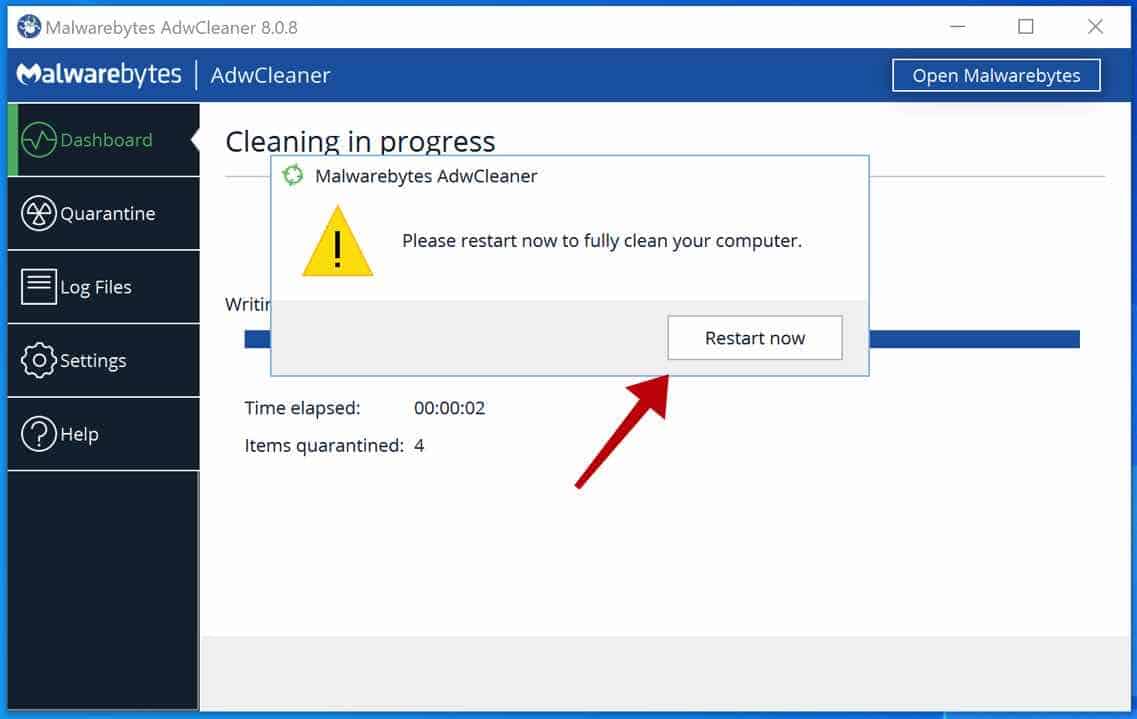
Restart your computer after using Adwcleaner to completely remove all malware from your computer.
Adwcleaner also includes advanced options. You can apply this functionality to solve the damage that malware has caused to your computer system.
To open the advanced options in Adwcleaner, click Settings on the right side of the menu. You will then see the following options.
Delete IFEO keys, Delete tracing keys, Delete prefetch files, Reset proxy, Reset Chrome policies, Reset TCP/IP, Reset Firewall, Reset IPSEC, Reset BITS, Reset IE policies, Reset Winsock, Reset HOSTS files.
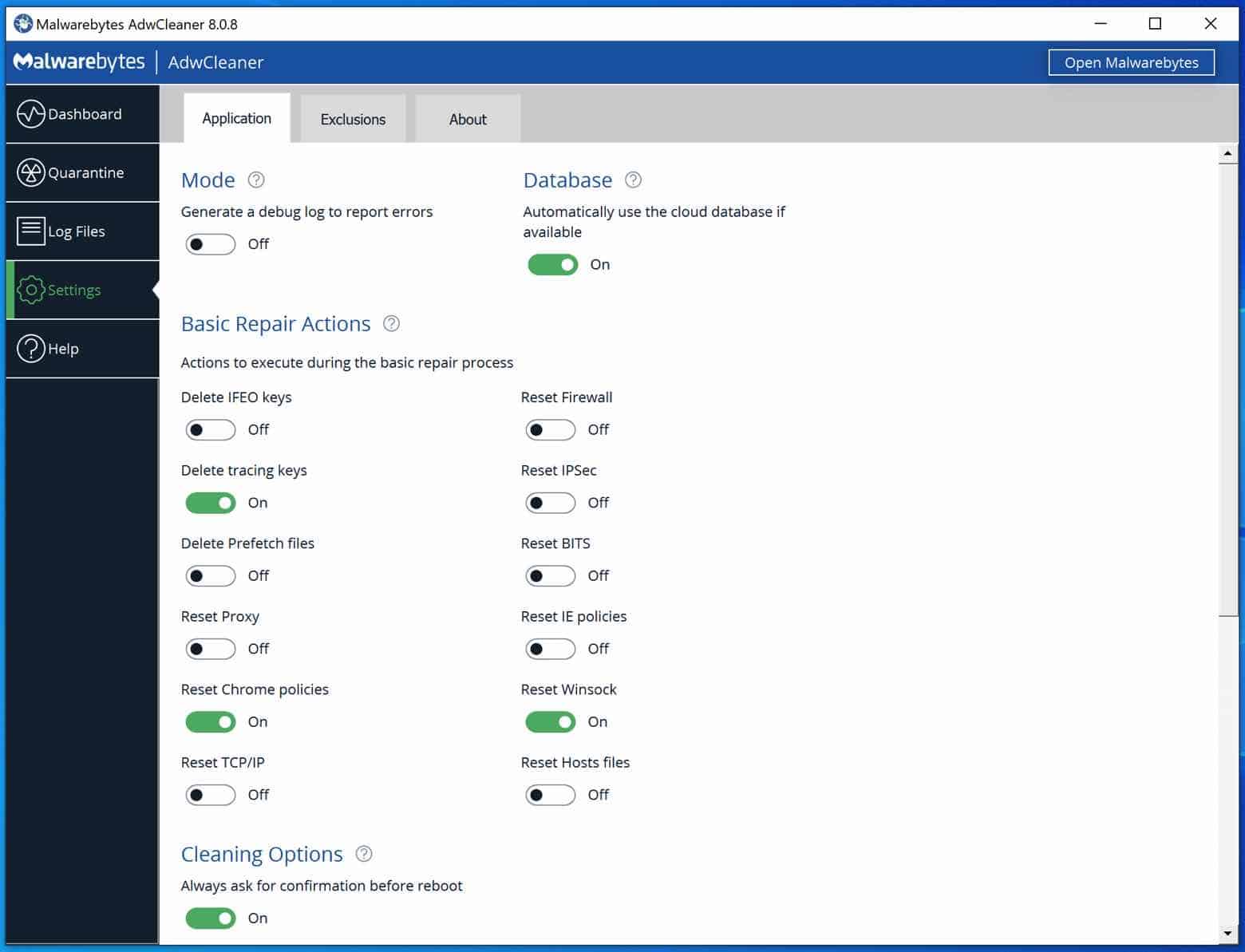
Technical knowledge is required before using these advanced Adwcleaner options.
